step 01
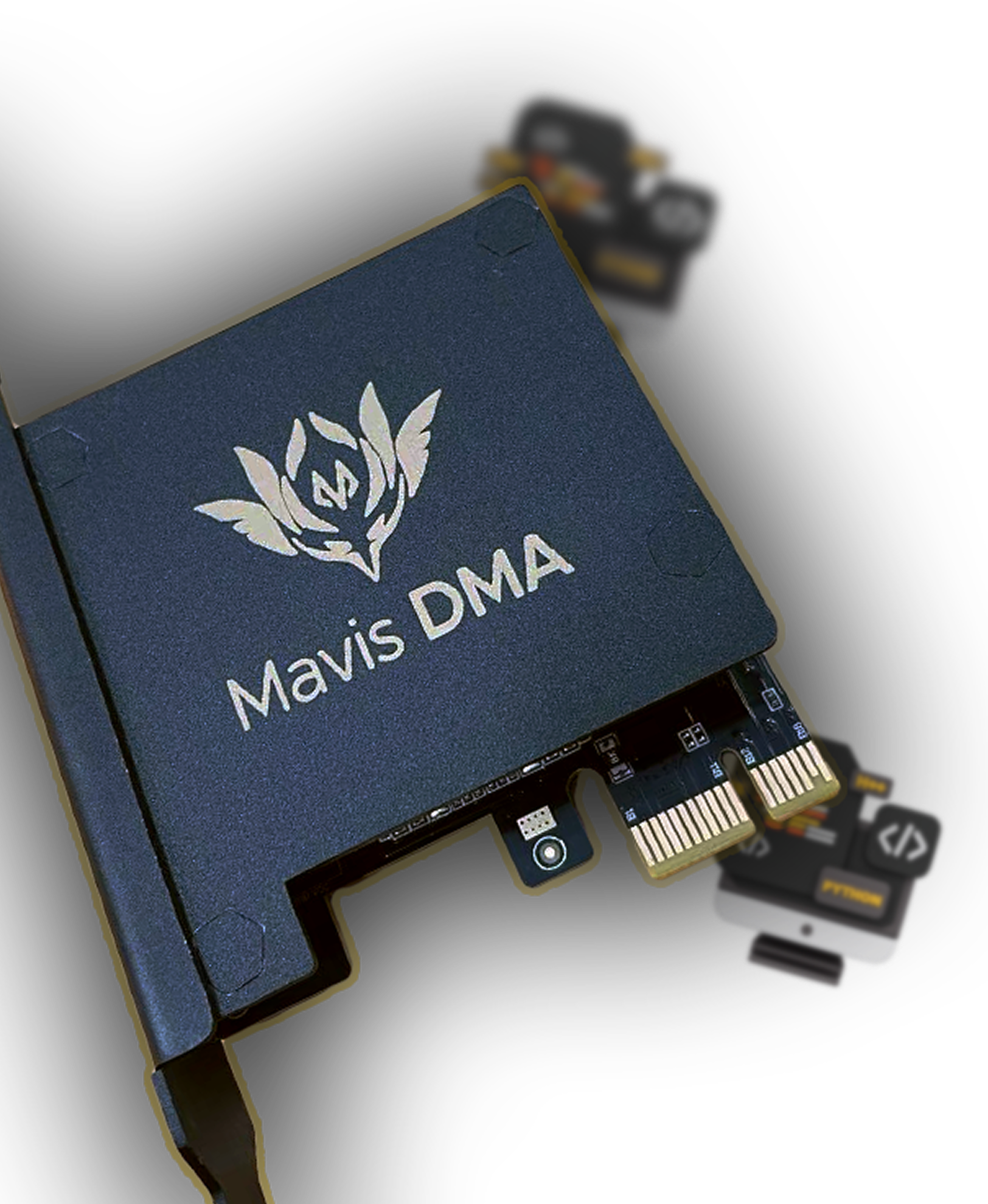
Hardware setup
Install the DMA card in the correct PCIe slot, keep cables seated firmly, and confirm the second PC can see the device before changing anything else.
- DMA card seated in PCIe
- Control PC connected
- BIOS settings checked before use
open hardware guide
step 02
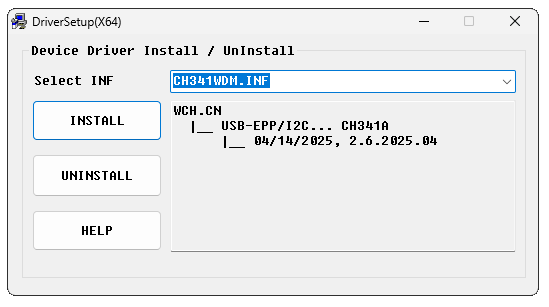
Software setup
Use the files included with your order, install only the required drivers, and keep your setup folder organized so support can check it quickly.
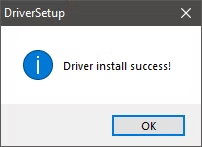
- Drivers installed
- Provider files kept together
- Tester ready for verification
open software guide
step 03
Testing and verification
Run your tester before opening support tickets. Save screenshots of device status, speed results, and any error text.
- Device detected
- Read speed looks normal
- Errors captured with screenshots
open testing guide
step 04
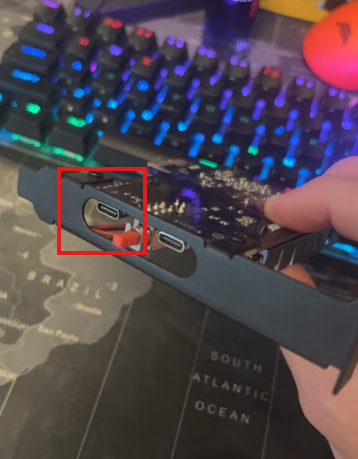
Firmware updates
Firmware should be handled carefully. Ask support before flashing if you are unsure which file matches your board.
- Confirm board model
- Use the matching firmware only
- Do not unplug during flashing
open firmware guide
Boards and fuser guides
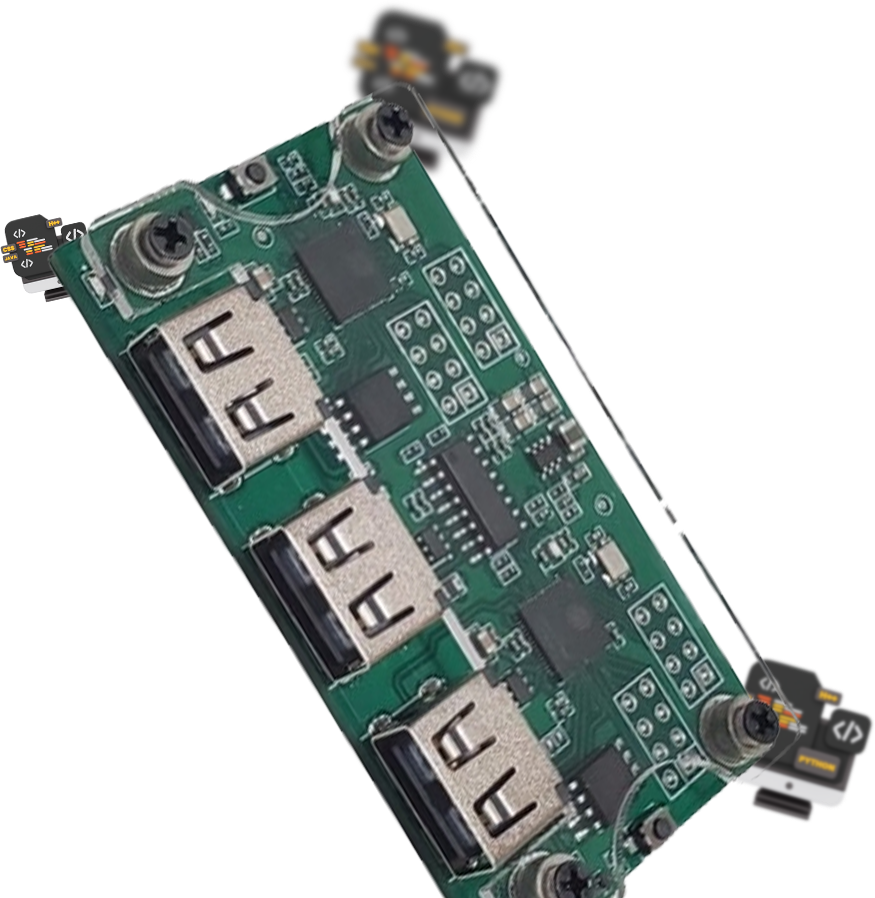 makcu
Keyboard and mouse board
Use for Makcu setup notes, device type checks, and provider integration reminders.
open makcu guide
makcu
Keyboard and mouse board
Use for Makcu setup notes, device type checks, and provider integration reminders.
open makcu guide
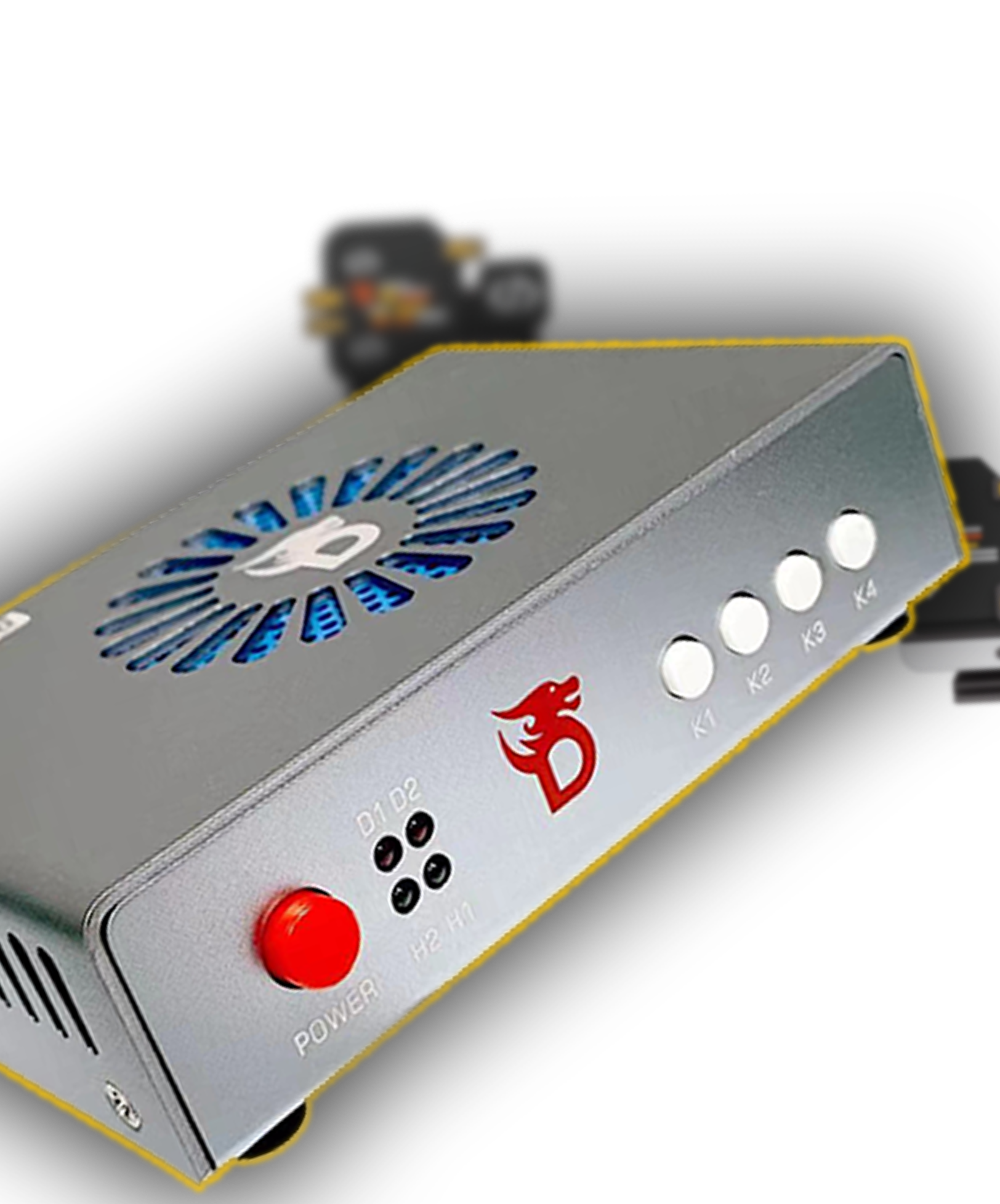 hdmi
4K HDMI fuser
Add EDID, refresh rate, and overlay display notes here when needed.
open hdmi guide
hdmi
4K HDMI fuser
Add EDID, refresh rate, and overlay display notes here when needed.
open hdmi guide
Requirements
- Supported DMA card and compatible firmware
- Second PC or laptop for control
- Stable USB and network connection
- Correct board or fuser for your setup
- Order files, key, and support ticket details available
Need help?
Open a support ticket with your order number, DMA card model, control PC specs, screenshots, and the exact step that failed.